


 PowerMyMac


Aside from the clever pun of the Python, Anaconda is considered to be a large and powerful platform that is used by science and this is why some people would use the Anaconda platform on their Mac. It actually makes a faster and easier way for users to set up and install the tools and libraries that you will be needing on your Mac.
Men människor avinstallera program från Mac for various reasons. So, there are still Mac users who would want to uninstall the Anaconda software on their Mac and that is what we are going to show you in this article: how to uninstall Anaconda on Mac in an effective and proper way.
Människor Läs också:Hur man avinstallerar Python på Mac säkert och fullständigtHow to Update Python on Mac Easily and Quickly
How to Uninstall Anaconda on Mac?
Following the easy steps below to remove Anaconda on your Mac:
- Quit Anaconda application on your Mac.
- Launch the Activity Monitor application on your Mac.
- Click on the Memory tab to check if some Anaconda processes are running in the background, if yes, then Force Quit.
- Remove the Anaconda application from your Applications folder.
- Remove the package service files.
If you feel difficult to check all the package service files one by one, then PowerMyMac can help you remove these files in just a few clicks, get the free trial now!
 Få en gratis provperiod nu!
Innehåll: Part 1. What Is Anaconda?Part 2. How to Uninstall Anaconda on Mac AutomaticallyPart 3. How to Uninstall Anaconda Manually from Your MacDel 4. Slutsats
Part 1. What Is Anaconda?
Anakonda is known to be free and open-source that you can use to simplify package management and deployment. This program is distributed by the Python and R programmeringsspråk for the use of scientific computing such as data science, machine learning applications, large-scale data processing, predictive analytics, and more.

Benefits of Anaconda
One benefit that you can get from having the Anaconda program on your Mac is when you are working with a team that you need to share some results with the other members of your team. That means you will be using less time in setting up things and going through your libraries.
Aside from that, Anaconda can also give you the benefit of having an easier manipulation and use of your data source and more.
However, with all the things that you can benefit from the Anaconda software, there are still some who would want to uninstall it. And we are going to show you how you can do it on your Mac the proper way.
Människor Läs också:Hur man avinstallerar Microsoft Office helt på Mac [2022-uppdatering]
Part 2. How to Uninstall Anaconda on Mac Automatically
Aside from the fact that you can uninstall Anaconda in the manual procedure, there is another quick way you may want to try first. This method will be using a powerful tool - iMyMac PowerMyMac.
PowerMyMac App Uninstaller är en av the best and most effective uninstalling tools you can use to uninstall any downloaded applications on your Mac. Using this tool will allow you to uninstall the Anaconda application from your Mac and all the files associated with the said app.
To know how you can uninstall Anaconda on Mac easily, here is a step-by-step method that you can follow.
- Get the PowerMyMac program for free and have it installed on your Mac. Then launch it.
- Välj App Uninstaller tool and click on the SCAN button to find all the apps on your Mac.
- Once that the scanning process is complete, the list of the whole applications will be shown. Locate the Anaconda application.
- Simply click on Anaconda to remove it. Then you will see all the files and folders that are associated with the app expanded on the right side of your screen.
- Select All and click on the CLEAN button to start the cleaning process.
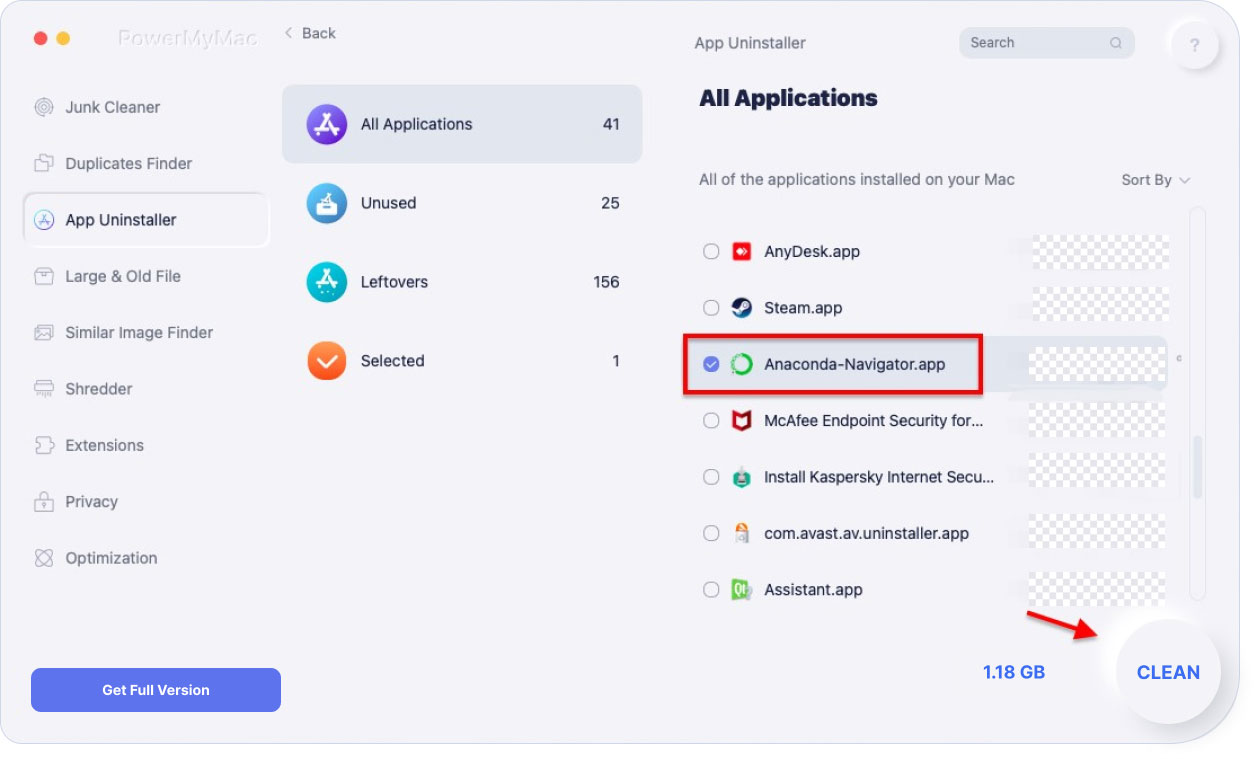
Now you have uninstalled Anaconda on Mac and at the same time, remove all the files that are associated with the application. All of this is just one click of a button. No more going through a lot of folders to find them one by one.
Truly, PowerMyMac is one powerful tool. You can use it to monitor the performance of your Mac as well. This is because the program has a real-time monitoring feature that will allow you to see what is taking up your Mac. This way, you will be able to know what are things should be deleted from your Mac.
PowerMyMac is also the best tool that you can use to clean up your Mac. This program is one powerful cleaner that will allow you to remove all the unnecessary files that you no longer need. This includes your junk, duplicate files, caches, large and old files, iTunes junks, and so much more.
Part 3. How to Uninstall Anaconda Manually from Your Mac
How do I completely uninstall Anaconda from Mac in a manual way? If you actually have all the time in the world, then you can opt to uninstall Anaconda on Mac the manual way. And for you to be able to do that, here is a step-by-step method that you can follow.
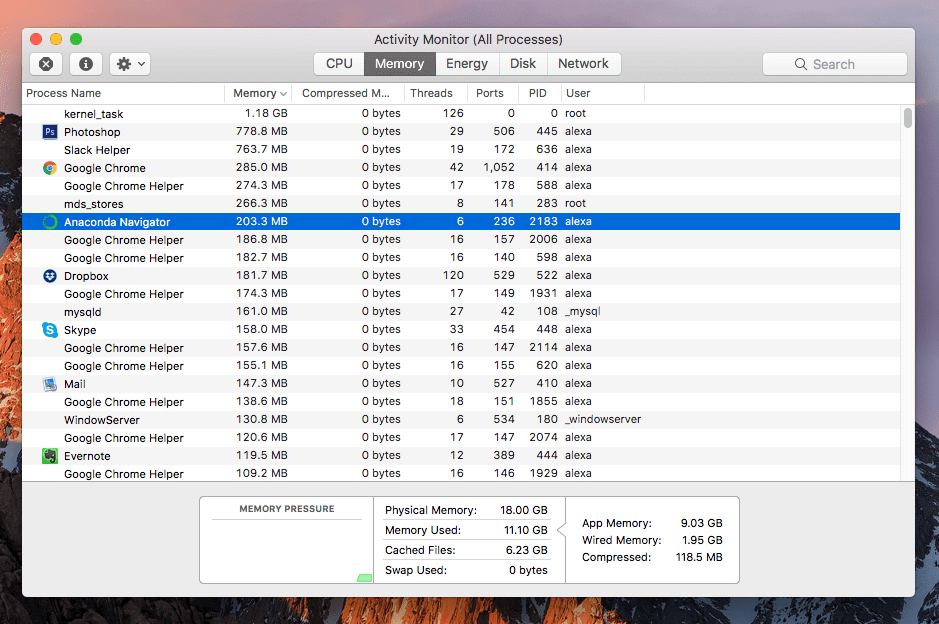
Step 1. To quit Anaconda application, launch the Activity Monitor applikation på din Mac.
Step 2. From there, click on the Memory tab to see if there are some Anaconda processes that are running in the background. If there is an Anaconda app running, use the Tvinga avsluta option to terminate it.
Step 3. Then you can remove the Anaconda application from your Applications folder.
Step 4. After removing the Anaconda application, then you should remove the package service files, and most of these files are in your Library folder. So make use of the following paths:
~/Library/Receipts/io.continuum.pkg.anaconda-client.bom~/Library/Receipts/io.continuum.pkg.anaconda-client.plist~/Library/Receipts/io.continuum.pkg.anaconda-navigator.bom~/Library/Receipts/io.continuum.pkg.anaconda-navigator.plist~/Library/Receipts/io.continuum.pkg.anaconda-project.bom~/Library/Receipts/io.continuum.pkg.anaconda-project.plist~/Library/Receipts/io.continuum.pkg.anaconda.bom~/Library/Receipts/io.continuum.pkg.anaconda.plist
Du kan också använda funter, which is a free application that will help you find all the hidden files that are associated with the Anaconda application. This will locate the files outside of your Bibliotek folder. Because of Funter, here is another list of useless files associated with the Anaconda app.
~/anaconda3~/.bash_profile-anaconda3.bak~/.condarc~/.conda~/.anaconda
Step 5. And then finally, empty your Trash folder and you are all done.
Del 4. Slutsats
So, that is how easy to uninstall Anaconda on Mac. Uninstalling it manually can actually be a good idea because it can also be a great help to recognize the whole system of your Mac. But it will actually take you to spend more time in uninstalling the process.
On the other hand, if you would want to finish the process immediately and thus you would want to do the task in a fast yet effective way, then the iMyMac PowerMyMac är för dig.
With it, you no longer need to go through all of your folders one by one just to make sure that there are no traces left on your Mac associated with the application that you are going to uninstall. You can do all this with just one click of a button.



Nademo2019-12-18 09:05:08
Both these 2 ways work! Thank you very much. It seems easier when using the free trail of Powermymac, cool! Any discount to buy Powermymac?
iMyMac2019-12-18 09:16:39
Yes, we have discounts during the Christmas, up to 60%! You can check it on our home page. Thanks for your support!
Användar ID2019-09-30 15:31:53
Thank you for your sharing, there are some files left after removing the Anaconda application, now I know where to find those files. Already deleted them!
iMyMac2019-09-30 16:59:55
Tack för ditt stöd!
Farooqy2019-11-26 22:07:24
No signal about "Cleaning is Completed" after confirming to remove system files. Did they be deleted?
iMyMac2019-11-27 09:03:05
Om du har tagit bort alla saker i en viss kategori framgångsrikt kommer du att se att filen äger "Zero KB" och knappen "Rensa" kan inte klickas.
Shopney2019-10-15 07:05:08
Hi, I downloaded your program but my antivirus program detected a virus in the download, it is safe?
iMyMac2019-10-15 09:02:06
Yes, our program has been checked by Apple for virus-free and is 100% secure. And it's notarized by Apple, specific details can be found at https://developer.apple.com/developer-id/. You can temporarily turn off the anti-virus software for installation.